

Seven months ago I did a slightly unhinged thing. I watched 200+ YouTube videos from AI experts, wrote down every tool they recommended, then tested the 110+ that showed up again and again.
Not because I love collecting apps. I did it because the gap between the right ai tools and the wrong ones is brutal. The right setup can make you feel like you hired an assistant. The wrong setup burns an entire week in retries, weird exports, broken prompts, and “why is it doing that” moments.
When I say “backed by data,” I’m not talking about benchmarks or marketing charts. I mean repeatable tasks, a simple scorecard, timed runs, quality checks, and notes on whether I’d still use the tool in a normal workweek. Below are the 14 winners, grouped by real jobs people do: think, write, research, capture, create, automate. Also, the first three are the foundation, because everything else works better once those are dialed in.
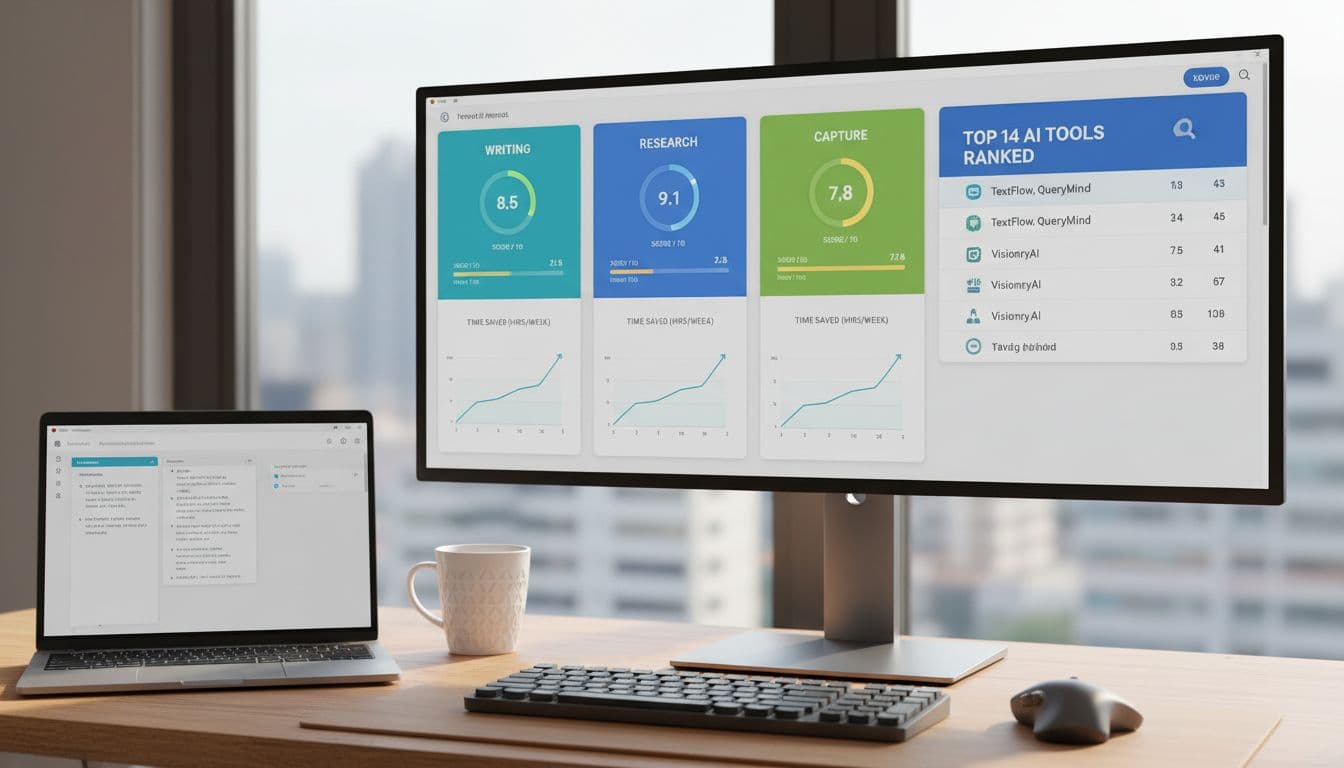 An AI-created “testing dashboard” scene, the kind of setup you end up building when you compare dozens of tools side by side.
How the testing worked, the scorecard, and the rules that kept it fair
The only way this doesn’t turn into “my favorite tool is the one I used last” is a fair test. So I kept it simple, almost boring.
Each tool got the same set of tasks, the same prompts (when prompts were needed), and the same time limit. I ran multiple rounds on different days because some tools look amazing once, then fall apart when you try to repeat the work. I also forced myself to use tools the way normal people do, meaning messy inputs, rushed mornings, half-finished notes, real deadlines.
The goal wasn’t to find the “smartest” tool. It was to find the tools that consistently turn effort into output, without babysitting.
A practical note: I didn’t reward tools that require you to become a prompt engineer just to get a decent result. Prompting matters, sure, but tools that collapse unless you say the magic words don’t belong in a real workflow.
If you want a broader reference list for what’s popular right now (not necessarily what’s best), Jotform’s January 2026 AI tools roundup is a decent snapshot of the current menu.
The 5 scores I tracked for every tool (so you can copy the method)
I tracked five scores on a 1 to 10 scale, then wrote quick notes after every run. Nothing fancy, but it keeps you honest.
Output quality was the obvious one. Did it produce something I’d ship, or did it need heavy cleanup?
Consistency mattered more than I expected. If a tool nails one run and fails the next, it’s not a tool, it’s a slot machine.
Time saved was measured against my “manual” baseline. Not theoretical time, real time.
Learning curve was basically, “Can I get value in the first hour?” Some tools are powerful but feel like learning a new instrument.
Total cost to get real value included pricing tiers and hidden friction. A cheap tool that forces constant retries can be expensive in practice.
Deal breakers were simple: buggy exports, unclear pricing, weak controls, or a workflow that required constant copy-paste gymnastics.
What I did not reward (because it looks good in demos but fails in real life)
Demos are clean. Real work is not.
I didn’t reward flashy features that break when the inputs are messy, like long transcripts, mixed formatting, or “here’s a PDF I found on a random site.” I also avoided tools that lock you in, where your data or outputs become hard to move.
The biggest trap is paying for lots of tiny single-purpose tools. One tool for summaries, one for outlines, one for rewriting, one for meeting notes, one for snippets. Pretty soon you’re juggling logins and subscriptions instead of getting work done.
The shift that changed everything for me was thinking in workflows, not apps. When your research feeds your writing, your notes feed your tasks, and your visuals feed your publishing, the value stacks up fast.
The 14 best AI tools, grouped by what you actually need to get done
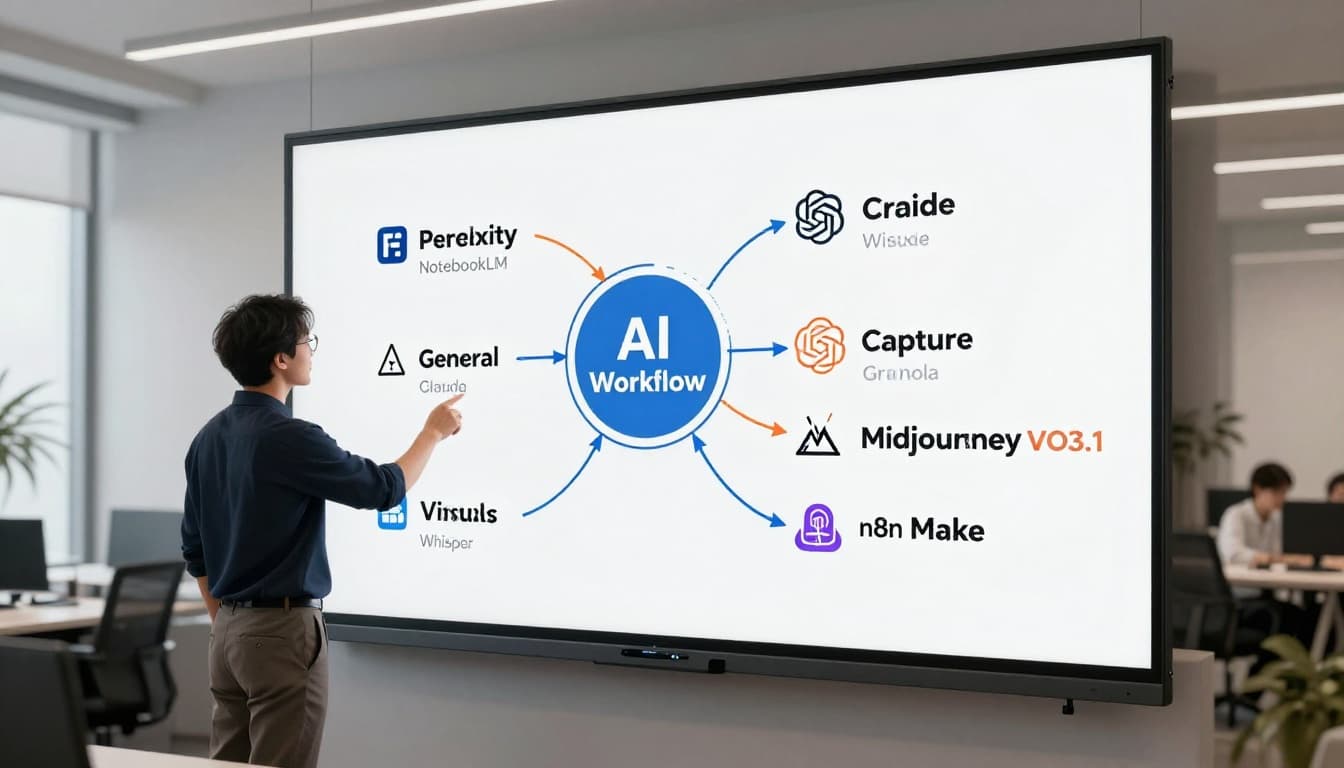 An AI-created “tool map” showing how a few categories connect into one workflow, instead of staying as isolated apps.
Here’s the short version: these tools win because they show up in real weekly work. Not just once.
To keep this readable, I’m grouping them by job. Each one includes who it’s for, where it shines, a quick example, and the downside that kept it from being “perfect.”
The foundation trio: ChatGPT, Claude, and Gemini (pick the right brain for the job)
ChatGPT is still my default for broad reasoning. It’s the tool I open when I’m not fully sure what the problem even is yet. The newer model behavior feels more “think first,” which shows up as fewer confident wrong answers on complex tasks. Example: I’ll paste a messy project brief and ask it to turn it into a plan with risks and open questions. Downside: for high-stakes facts, you still have to verify, and the tone can drift if you don’t steer it.
If you’re curious how OpenAI is pushing the browsing angle too, this internal write-up on ChatGPT Atlas and AI-powered browsing adds good context.
Claude is what I reach for when writing and coding quality matters, and when the context is huge. Its long context window changes the game for stuff like “here are 80 pages of notes, keep it all straight.” Example: drop in a long transcript and ask for a clean, structured article draft that doesn’t lose key details. Downside: it can be a bit cautious, and sometimes you need to ask twice to get a stronger point of view.
Gemini is the best fit if your life is already in Google Workspace. When it can connect to Gmail, Drive, and Calendar, it feels less like chatting and more like getting help inside your actual day. Example: “Find the doc where I wrote the Q1 plan and summarize the action items.” Downside: if you’re not in Google’s ecosystem, the advantage shrinks.
For an outside comparison of these three assistants, Improvado’s ChatGPT vs Claude vs Gemini guide is useful background.
My quick decision guide in plain language: pick ChatGPT if you want one assistant for almost everything, pick Claude if you write a lot or work with long docs, pick Gemini if Google apps are where you live.
Research and learning: Perplexity and NotebookLM (fast answers vs trusted answers from your files)
Perplexity became my “search engine that actually answers.” When I need to understand something fast, it reads sources, summarizes, and gives citations so I can check where claims came from. Example: fact-checking a tool feature before I buy it, or getting a quick landscape view of a topic before writing. Downside: it’s still web research, so you’re only as good as the sources it pulls, and you should still click through when it matters.
NotebookLM is different. It’s best when you want the AI grounded in your stuff, PDFs, reports, articles, transcripts, competitor pages. You upload the sources (up to around 50), and it answers using that set, which cuts hallucination risk a lot. Example: load 15 research papers and ask, “Summarize the method each one used and where they disagree.” Downside: it’s only as complete as what you upload, so gaps are on you.
Google has a clear overview of practical uses in this NotebookLM feature guide, and the official changelog vibe shows up in Google Workspace’s NotebookLM updates.
If you want a deeper internal workflow for research, this piece on best AI tools for research in 2026 fits nicely with this section.
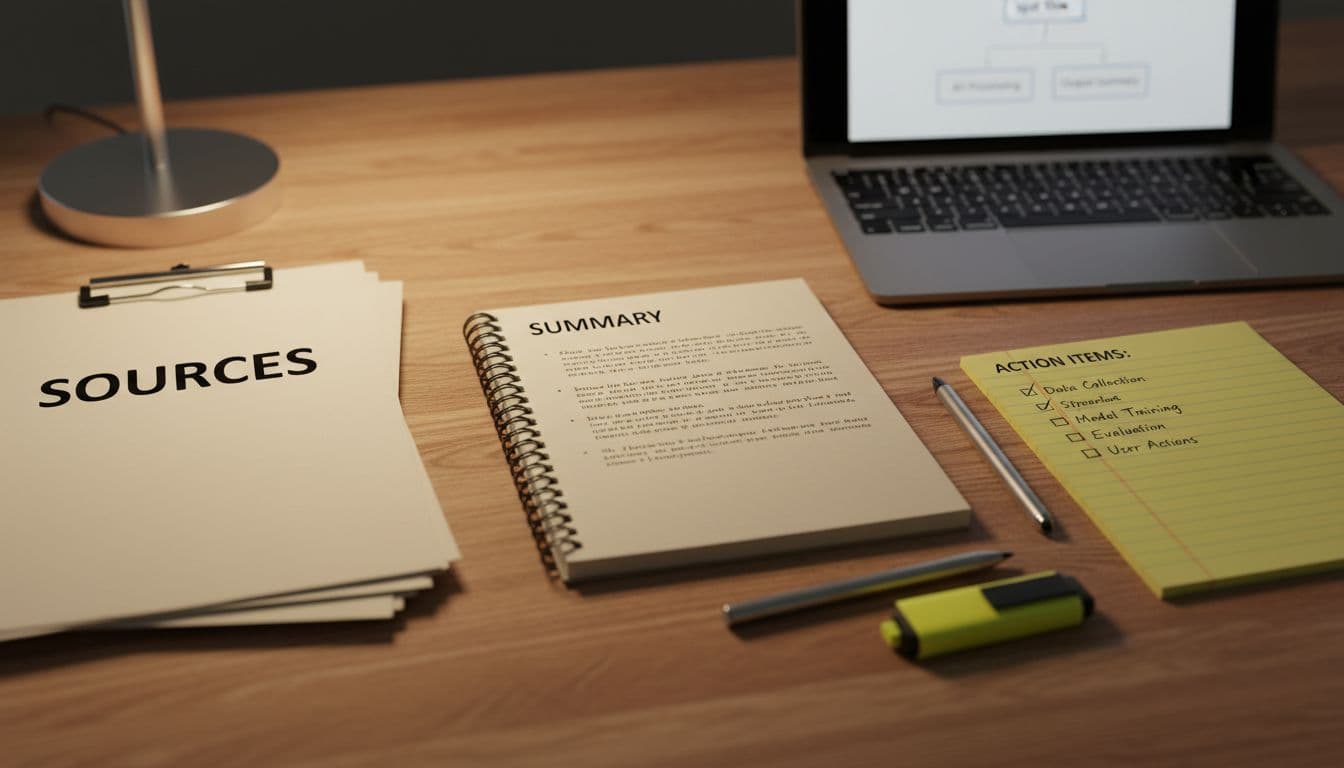 An AI-created “sources to summary to action items” scene, the real shape of good AI research work.
Capture and meetings: Whisper Flow + Superwhisper, Granola, and Fathom (stop losing ideas)
This category surprised me. I thought it was “nice to have.” It turned out to be the glue.
Whisper Flow is the fastest way I’ve found to get thoughts into text without fighting a keyboard. You hold a hotkey, talk normally, and it types wherever your cursor is, email, Docs, ChatGPT, anywhere. It also cleans up stumbles, adds punctuation, and handles quick corrections (like “Tuesday… no, Wednesday”) without leaving the mess in the final text. Example: I dictate a rough client email, then use command-style edits to tighten tone. Downside: it’s cloud-based, so sensitive work needs policy checks.
Superwhisper is the privacy-first alternative, running locally on-device. That’s a real win if you work with sensitive info, but the trade-off is it’s Mac-only and the formatting polish can be less magical. I’m counting Whisper Flow + Superwhisper as one slot because they solve the same job: fast dictation, different privacy posture.
For meetings, Granola is the one I’d pick if you hate bots joining calls. It captures audio from your device, so it’s invisible to others, then produces clean notes that feel human-written. The standout feature is how it can expand your quick bullet notes using the transcript context. Example: I type “budget concern” mid-call and later it becomes a full paragraph with who said what. Downside: it’s not the cheapest option.
Fathom is the easy entry point. It’s free, works across Zoom, Google Meet, and Teams, and gives summaries and action items right after the call. Example: use it for internal standups, then paste action items into your task manager. Downside: notes quality can be a step down from premium tools, but for free, it’s hard to argue.
Images and video: Midjourney, Nano Banana Pro, VO3.1, and Cling (create assets that look real)
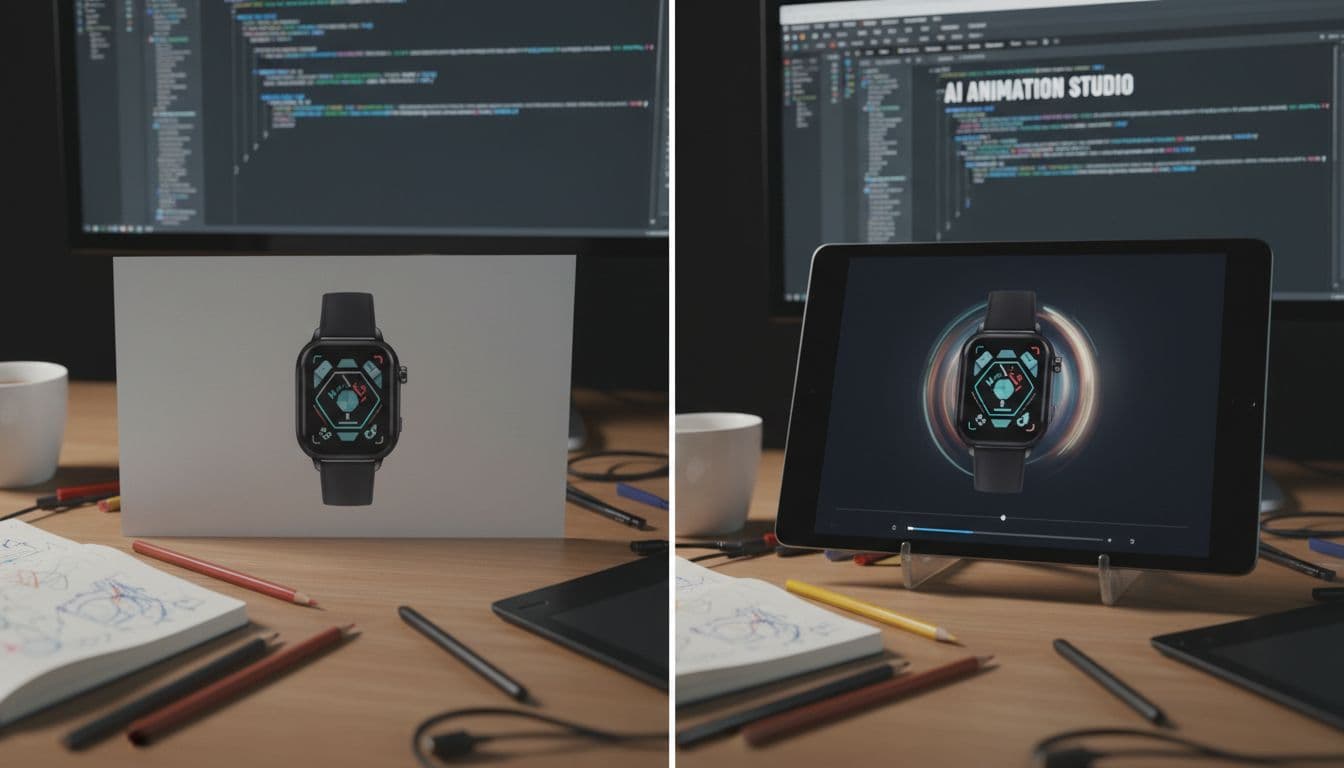 An AI-created before-and-after concept, turning a static visual into a short animated clip.
This is where AI got… kind of scary good.
Midjourney still wins on pure image quality and style. When you need that polished, cinematic look, it delivers more often than the rest. The web interface helped, but there’s still a learning curve with prompts and parameters. Example: generate a consistent visual style for a brand campaign. Downside: you’ll spend time learning how to “talk to it.”
Nano Banana Pro (inside Gemini) is my pick when the image must include readable text, and when real-world context matters. Most image models still mess up words. This one is much better at clean typography, even across languages, which makes it useful for posters, thumbnails, signage, and simple infographics. Example: generate a YouTube thumbnail concept where the headline is actually usable. Downside: for heavy stylized art, you may prefer Midjourney.
If you’re comparing image tools in more depth, this internal guide on best AI image generators to use in 2026 is a solid companion.
For video, VO3.1 is the standout when you want audio built in. Most video tools make you handle sound separately, VO3.1 generates clips with ambient audio, sound effects, and even dialogue with lip sync. Output quality is strong at 1080p, and you can extend clips by chaining generations. Example: turn a product image into a short ad concept with matching sound. Downside: you can burn credits fast if you iterate a lot.
Cling is the best balance of cost and quality for image-to-video, and it’s surprisingly good at character consistency. The reference image feature (including multiple references) helps stop the usual face-morphing problem across frames. Example: keep the same character stable across a 60 to 180 second sequence. Downside: you still need to iterate, and not every motion prompt lands on the first try.
Automation that makes the wins compound: n8n and Make (turn tools into a system)
Automation is where “saving 10 minutes” turns into “saving half a day.”
n8n is a flexible, low-code way to connect tools into workflows. Think of it like building little robots that move info between your apps. Example: Perplexity runs morning research, Claude summarizes it, and the summary saves into a folder automatically. Downside: it can feel technical at first, even though it’s “low-code.”
Make does a similar job, but it’s more visual, and it has a bigger library of ready-made templates. If you prefer starting from pre-built workflows, it’s usually faster to get going. Example: meeting notes get processed, action items extracted, and tasks created without you touching anything. Downside: complex workflows can get messy, and costs can rise as usage grows.
My honest take after 7 months: what surprised me, what I stopped using, and how I would start today
Two surprises hit me pretty hard.
First, the best tools weren’t always the fanciest. A lot of “viral” tools looked good in a two-minute demo, then failed the minute I tried to use them under pressure, like Monday morning, five calls, messy notes, and a deadline.
Second, I thought prompting skill was the main unlock. It matters, yeah. But workflows matter more. Once I had research flowing into writing, and meetings flowing into tasks, things got quieter in my brain. Less re-finding, less re-writing, less “where did I put that.”
I also stopped paying for tools that did one tiny thing. Subscription creep is real. You don’t feel it month to month, then you look up and you’re paying for 9 apps that all kinda overlap.
A simple starter stack for beginners: one assistant (ChatGPT or Gemini), one research tool (Perplexity or NotebookLM), and one capture tool (Fathom for meetings or dictation via Whisper Flow). Busy pros usually need the same thing, just with Granola plus automation earlier.
Privacy wise, I keep a simple rule: if I wouldn’t paste it into a public doc by mistake, I think twice before sending it to a cloud model. That’s where local options like Superwhisper earn their spot.
The biggest lesson: one great workflow beats five “cool” tools
My best week wasn’t when I bought something new. It was when I connected what I already had.
One tiny example: I used to finish calls, then tell myself I’d write follow-ups later. Later didn’t happen. With meeting notes captured, action items extracted, and tasks created automatically, the follow-up became the default outcome, not a heroic effort.
That’s the real promise of ai tools. Not “do more.” More like, “stop dropping the ball on stuff you already care about.”
If I had to rebuild my AI toolkit in one weekend, this is the order I would do it
I’d start with one main assistant and force myself to use it daily for a week. Pick ChatGPT for general work, Claude for heavy writing and coding, or Gemini if Google apps run your life.
Next, I’d add research (Perplexity for web answers, NotebookLM for my documents). Then capture, dictation first if writing is my bottleneck, meetings next if calls are my bottleneck.
Only after that would I add visuals. And only after visuals would I automate. Automation on top of chaos just gives you automated chaos, and that’s… not fun.
Conclusion
The right ai tools don’t just save time, they save attention. The wrong ones quietly steal your week through retries, friction, and messy outputs.
If you try one thing after reading this, keep it small: pick two tools to test this week, one assistant and one research or capture tool. Track time saved, even loosely, then expand from there. And if you tell me what job you’re trying to speed up (writing, meetings, research, visuals), it’s easier to recommend a clean starting stack.


0 Comments