

Picking an AI image model used to be a fun side quest. In January 2026, it’s more like picking the right lens for a shoot. The options are everywhere, and most “bad AI images” happen for a boring reason: people start with the wrong model.
This guide isn’t a giant list of everything. It’s a practical map for choosing the best image generating ai based on what you’re actually trying to do: photoreal images, fast edits, clean text and logos, design mockups, or open workflows you can customize.
By the end, you’ll know which one to start with, plus one or two backups that cover the gaps.
The best AI image generators in 2026 (quick picks by what you need)
If you want a clean short list that holds up in real work, these are the tools that keep showing up in side-by-side tests and day-to-day use.
Here’s the simple way to think about them.
| Tool (2026) | What it’s best at | Who it’s for |
|---|---|---|
| GPT Image 1.5 | Readable text in images, logos, photoreal | marketers, creators, product teams |
| Gemini 3 Pro Image (Nano Banana) | Fast edits, consistent people, quick variations | social, e-commerce, photo-like edits |
| Flux 2 | Realistic styles, customizable workflows | builders, tinkerers, teams |
| Seedream (Cream 4.0) | Fast, versatile “from scratch” generation | general creators, high volume |
| Hunyuan Image 3 | Long prompts, concept art, rich scenes | illustrators, world builders |
In broader 2026 comparisons, GPT Image 1.5 and Gemini 3 Pro Image keep ranking near the top for quality and prompt-following, with Flux 2 variants close behind. If you like reading full breakdowns and methodology, WaveSpeedAI’s comparison post is a useful reference point: AI image generators comparison guide.
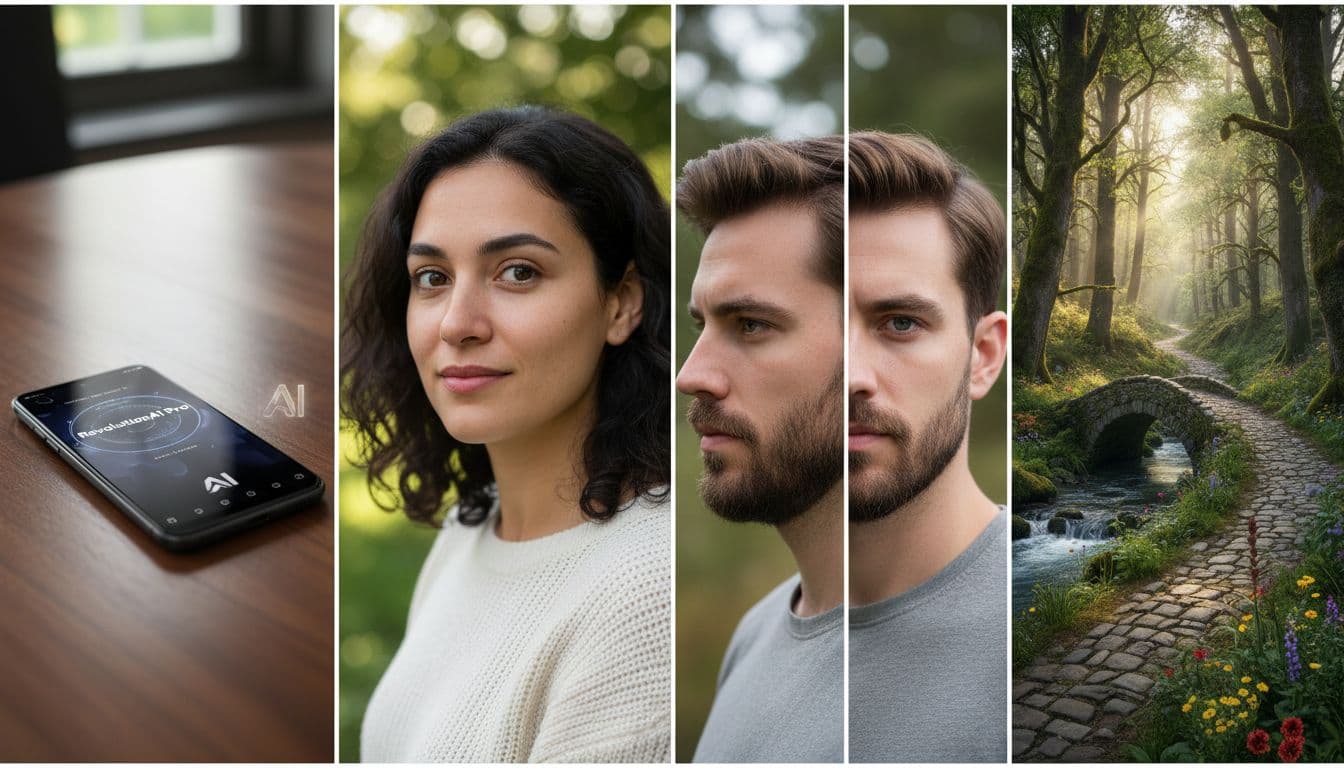 Side-by-side examples of common 2026 use cases, created with AI.
If you only choose one tool, start here
Most people don’t need five tools. They need one “default” that fits their most common job.
If you need readable text and logos inside images, start with GPT Image 1.5. Think: YouTube thumbnails with sharp words, product labels that don’t turn into soup, simple brand assets, packaging mockups, and clean photoreal shots.
If you need edits and fast variations, start with Gemini 3 Pro Image (Nano Banana). It’s the one I reach for when I already have an image and want changes like “turn the face toward camera,” “change the jacket,” or “make the weather sunny,” without the whole scene falling apart.
If you want an open, flexible workflow, start with Flux 2. It’s a strong choice when you care about control, custom pipelines, or running the model in the environment you prefer. It can look a little “stiff” until you learn its taste, but once you do, it’s solid.
What changed in 2026 (why older recommendations feel outdated)
Three things made older “just use X” advice feel… off.
First, speed is now a real advantage, not a nice extra. Some models return results in seconds, which changes how you iterate. You stop writing one perfect prompt and start trying five good ones.
Second, text rendering improved at the top end. It’s not perfect, but it’s finally usable for a lot of marketing work. Zapier’s running list is one of the better mainstream summaries if you want a wider tool view: best AI image generators in 2026.
Third, pros are getting better results by splitting the job. One model for the base image, another for edits, and another for typography or final polish. Also, pricing has settled into a familiar zone: many paid plans land around $10 to $20 per month, with free tiers that are fine for testing.
Tool-by-tool breakdown: what each model is best at (and what it struggles with)
The trick isn’t finding a model that “can do everything.” It’s knowing what each one does without a fight, and where it starts acting weird.
Below are the practical strengths, common mistakes, and one simple tip per tool.
GPT Image 1.5: best for clean text, logos, and photoreal images
GPT Image 1.5 is the safest pick when your image has to ship, not just look cool. It’s strong at photoreal scenes and it’s one of the best options when you need clear text inside the image, like labels, headers, or a simple logo mark.
Where people mess up is asking for too much tiny text. If your design needs a paragraph, don’t put it in the image. Make the image clean, then add body text in your design tool.
Simple tip: generate the image first, then do a second pass that only changes one detail (like “same image, replace the label with ‘Ocean Mint’ and keep the same font style”). And always zoom in and check spelling at final size, especially on small words.
If you’re curious how other reviewers stack tools by category, this longer roundup is decent context: AI image tools compared and evaluated.
Gemini 3 Pro Image (Nano Banana): best for fast edits, consistency, and control
Nano Banana has a vibe: it listens. You don’t have to write a novel to get a clean edit, and that matters when you’re working fast.
In testing, it’s especially good at image edits and controlled variations. It handles camera angle changes, clothing tweaks, and “same person, new situation” work better than most. One edit I keep coming back to is the basic fix: turning a subject so the face is visible. On many models that turns into a melted ear or a new human. Here it usually stays believable.
The common mistake is stacking changes. If you ask for a new pose, new lighting, new outfit, new background, and new mood in one edit, you’re basically re-generating. Keep edits tight.
Simple tip: when settings like seed or guidance are available, keep them consistent while you iterate. And only push 4K output when you’re close to final, it saves time and credits.
Flux 2: best open workflow for realistic styles and customization
Flux 2 is popular for a reason: it gives you a strong base for realism and a workflow you can adapt. If you like controlling the process (or you need your team to run things a certain way), Flux fits.
The strength is customization. You can tune how you generate, how you upscale, how you batch, and how you integrate with other tools. The results can look sharp and grounded, especially for product-style shots and natural outdoor scenes.
The struggle is that Flux tends to reward specificity. Vague prompts can produce “almost right” outputs that feel off in small ways: odd hands, strange object edges, a background that doesn’t make physical sense.
Simple tip: describe camera and light like you would in photography. Add lens feel (wide vs portrait), light direction, and the environment (kitchen window light, overcast street, studio softbox). Those details cut artifacts fast.
Seedream (Cream 4.0 by ByteDance): best jack-of-all-trades for generating from scratch
Seedream is the model I’d hand to someone who wants a single tool for “make a great image from nothing.” It’s fast, flexible, and it tends to produce believable textures. Wet stone, skin texture, fabric, reflections, it usually gets the basics right without that plastic doll look.
It also holds up across very different prompts. Two examples it handles well are a gritty scene like a rescue worker on a stormy shoreline, and a clean fashion editorial look with frost-like makeup textures. That range is why it feels like a real default generator.
One more practical point: depending on where you access it, Seedream can be cheaper than some premium options, which matters if you generate a lot.
Simple tip: if you want realism, ask for “natural skin texture” and “real-world lighting.” If you want style, name the style and keep everything else simpler.
Hunyuan Image 3: best for long prompts and artistic concept art looks
Hunyuan Image 3 shines when you write prompts the way you actually imagine a scene. It handles long, detailed descriptions well, and it’s also appealing because it’s open source, so access isn’t limited to one company’s UI.
It’s great for fantasy environments, concept art vibes, and rich scene-building where you want the model to follow a layered description instead of guessing.
The mistake people make is writing a long prompt that’s messy. Long is fine. Confusing isn’t.
Simple tip: write in clear chunks: subject, environment, lighting, mood, camera. It keeps the model from losing the plot halfway through.
How to pick the right AI image generator for your workflow (without wasting hours)
You’ll save a lot of time if you stop hunting for one perfect model and start thinking in steps. In 2026, the best image generating ai is often a small stack, not a single winner.
A simple 3-step workflow that works for most people
Start with a base image generator (Seedream or Flux 2) when you need a scene from scratch.
Move to Nano Banana when you need controlled edits and variations, especially if you’re keeping the same person or product consistent.
Finish with GPT Image 1.5 when typography, labels, or clean “final render” details matter. This is the combo that keeps you moving, even on a deadline.
Prompts that get better results (simple rules, not complicated tricks)
Good prompts aren’t fancy. They’re clear.
Call out the subject, setting, lighting, and camera feel. Don’t mix opposites like “bright noon sun” and “dark night street” unless you explain why. For people, asking for natural skin texture helps a lot.
For edits, change one thing at a time. “Turn his face toward camera” is better than “turn his face, change jacket, make it sunny, add a helicopter, and make it 1990s film.”
Some platforms offer prompt auto-enhance, which can help, but when you’re comparing tools, keep prompts consistent so you can actually see what changed.
Where to place images in your post (so they help, not distract)
Put one comparison image near your quick picks, it helps readers “feel” the difference fast.
Add a close portrait example in the tool breakdown if you talk about skin texture and faces.
Add a before-and-after edit example near the workflow section, because edits are hard to explain with words alone.
If you do design work, a poster mockup image fits well near the “text and layout” discussion.
 Photo by Sanket Mishra
What I learned after testing models back to back (my real 2026 takeaways)
After weeks of running the same prompts across a pile of models, the big lesson wasn’t some secret prompt trick. It was simpler, kind of annoying too: the model matters more than tiny wording changes.
When I tested “generate from scratch” prompts, Seedream kept landing in that sweet spot where the image looked grounded and detailed without me babysitting it. When I switched to edits, Nano Banana felt like the easiest tool to steer. I’d type a short instruction, pause for a second, and the change would happen without the whole image re-rolling into a new scene.
I also learned that realistic face models matter a lot if you’re building consistent characters. Casual, phone-like realism has a place, especially when you want images that don’t scream “studio.” And when I used long, detailed prompts, Hunyuan was one of the few that didn’t get lost halfway through.
One more thing I didn’t expect: using more than one model isn’t overkill anymore. It’s just… normal.
Conclusion
In 2026, the best image generating ai depends on your job, but the safest setup is simple: one tool for text (GPT Image 1.5), one for edits (Nano Banana), and one flexible generator (Seedream or Flux 2).
Pick one today and run the same test prompt five times. Judge it by realism, consistency, and how often it actually listens. Save this guide, and if you end up making something cool, share what you built and which model surprised you.


0 Comments