

Ever tried to share a great idea, then watched it die inside a giant paragraph?
That’s the problem infographics solve. They turn a wall of text into something people can scan in seconds, with clear sections, icons, and a simple flow. The best part is you don’t need design skills anymore. With the right ai tools, you can go from notes to a clean visual in about a minute.
This post covers two free Google options that work surprisingly well: NotebookLM (best when you have sources) and Gemini (best when you’re starting from an idea). I’ll show the exact steps, a few prompt templates, and the mistakes that make AI infographics look messy. I’ll also set expectations for free plans, because “free” often means export limits, fewer styles, or occasional watermarks.
Before you start, pick the right text and goal for your infographic
An infographic is like a poster. If you cram in a full essay, the poster fails. The quickest way to get a good result is to clean your input before you open any tool.
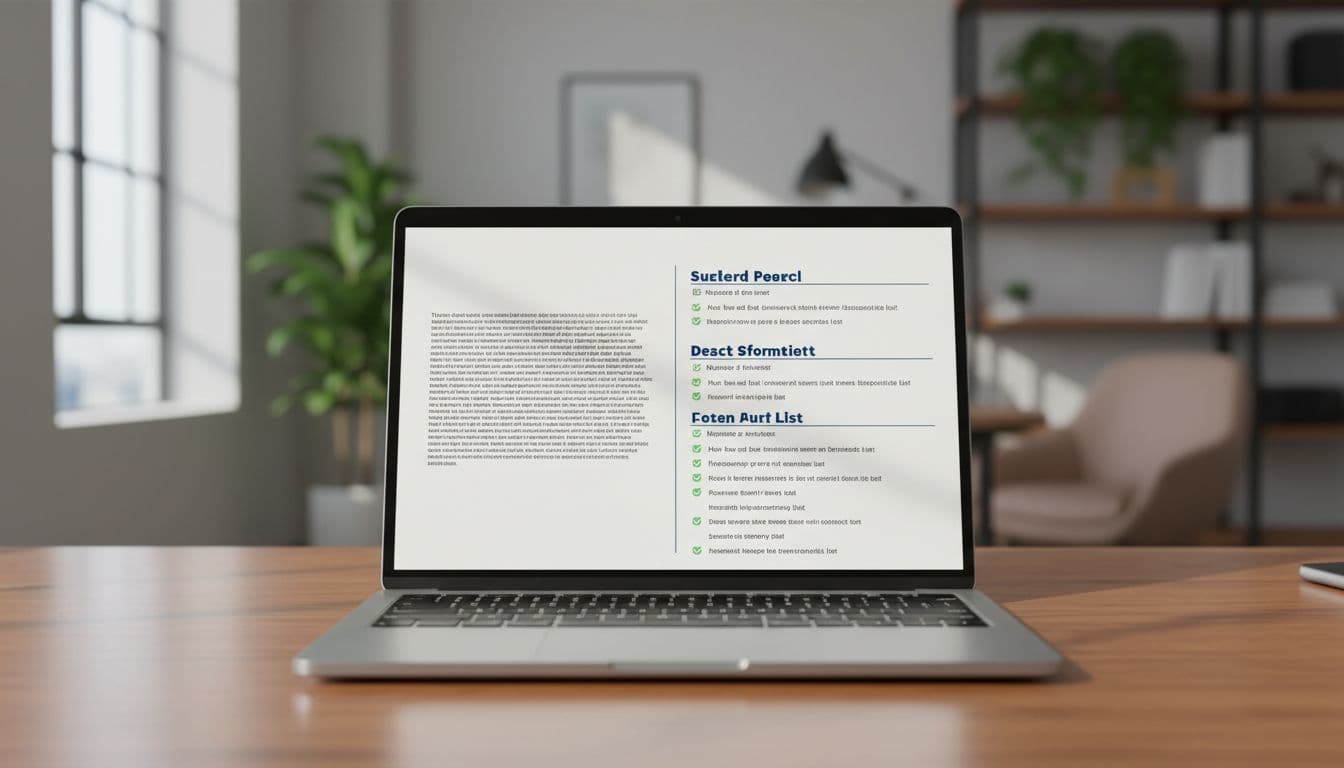
Messy text versus a clean outline layout, created with AI.
Here’s a simple checklist that improves results in both NotebookLM and Gemini:
- One topic per infographic, written as a single sentence.
- 3 to 6 main points, each with a short label.
- One clear structure (steps, timeline, comparison, or checklist).
- Any numbers you care about, gathered in one place (and double-checked).
Both tools work best with structured text, like headings and bullets. If you paste a novel-length paragraph, you’ll often get tiny text, weak hierarchy, and random grouping.
Suggested image placement (alt text guidance only): “A split view showing a messy paragraph on the left and a tidy bullet outline on the right, like a before and after cleanup.”
Turn a wall of text into a clear outline in 3 minutes
If your content is messy, do this quick rewrite:
- Topic sentence: One line that says what this is about.
- 3 to 6 key points: Each point should be a headline, not a paragraph.
- Call to action: One short line at the end (what should the reader do next?).
Common infographic formats that AI handles well:
- Step-by-step process (how something works)
- Comparison (A vs B)
- Timeline (then to now)
- Checklist (do this, then this)
- Stats snapshot (a few numbers with short context)
A practical trick: rewrite your sentences for an 8th-grade reader. Short sentences win. Replace long phrases with plain words. If a line can’t fit on one breath, cut it.
Choose where it will be posted so the size looks right
Aspect ratio matters more than most people think. If you design for a slide, then post to Instagram, your text may shrink into unreadable dust.
A few common sizes you can request in prompts:
- Square (1:1) for many social posts
- Wide (16:9) for slides and YouTube thumbnails
- Vertical (9:16) for TikTok, Reels, and YouTube Shorts
Two quick rules that prevent “AI poster chaos”:
- Keep text large, and avoid long sentences inside sections.
- Stick to two fonts max and use strong contrast (dark text on light background, or the reverse).
Tool 1, Google NotebookLM infographic feature, best for turning many sources into one visual
NotebookLM is research-first. You give it sources (links, YouTube videos, documents, or plain text), it builds an overview, and then Studio can generate outputs like infographics, mind maps, and slide-style summaries.
If you’re new to NotebookLM, start at the official site: Google NotebookLM. For the infographic feature details straight from Google, this help page is worth bookmarking: Generate an Infographic in NotebookLM.
NotebookLM shines when your infographic needs to reflect multiple references. In my testing, it’s also fast. Even when you feed it many sources, it can still produce a detailed, presentation-ready structure in seconds, as long as your sources are relevant and not repetitive.
Suggested image placement (alt text guidance only): “NotebookLM Studio panel open with an infographic output preview beside a list of imported sources.”
How to create an infographic from one source (fast workflow)
Use this when you have one article, one set of notes, or one video you trust.
- Create a new notebook in NotebookLM.
- Add a source: paste text, drop in a URL, or add a YouTube link.
- Wait for the auto overview to appear. This is important, it means NotebookLM processed the source.
- Open Studio, then select Infographic.
- Choose your options:
- Detail level (basic vs detailed)
- Orientation (wide vs vertical, depending on where you’ll post)
- Generate, then tweak the output by editing your description or prompt.
A small prompt change can fix most issues. For example, if the output feels like a blog post, add: “Use 5 sections max, short headings, top-to-bottom flow.”
How to combine many sources for a more detailed infographic
This is where NotebookLM starts to feel unfair (in a good way). You can paste multiple links (each on a new line), add a set of YouTube videos, or use its research tools to gather sources, then generate one combined infographic.
A simple multi-source approach:
- Start a new notebook.
- Paste multiple sources, keeping them clearly separated.
- Let NotebookLM build the combined overview.
- Go to Studio, select Infographic, and choose Detailed.
- Generate, then refine.
If your infographic comes out too long, it usually means the tool tried to honor every point from every source. Fix it with one of these instructions:
- “Limit to 5 sections.”
- “Use 6 words max per heading.”
- “Remove examples, keep only main claims.”
- “Use a checklist format with short labels.”
If you want a walk-through outside of Google’s docs, this December 2025 guide is a solid companion: Create Infographics and PPTs in Seconds with NotebookLM.
Prompt templates that make NotebookLM output cleaner
Keep prompts short. Long prompts often cause long sections and tiny text. Here are three copy-friendly templates:
Template 1 (step-by-step guide):
“Create a step-by-step infographic titled: [TITLE]. Audience: [students, freelancers, managers]. Use 5 steps max, short headings (6 words max), and one-line explanations.”
Template 2 (comparison chart):
“Make a comparison infographic: [A] vs [B]. Use 6 rows max. Each row has: label, A summary (10 words), B summary (10 words). End with a 1-sentence takeaway.”
Template 3 (study notes infographic):
“Turn my notes into a study infographic. Use 5 sections: key terms, core idea, how it works, common mistakes, quick review. Keep language simple and use top-to-bottom flow.”
NotebookLM is also handy for tracking where claims came from, because it’s grounded in the sources you imported. That makes it easier to cite or double-check before you share.
Tool 2, Google Gemini, best for generating the infographic content and visuals quickly
Gemini is great when you don’t have polished text yet. You can start with an idea, ask Gemini to shape the content, then ask it to generate the infographic visual.
If you’ve ever stared at a blank page, this is the faster path: idea first, structure second, image last.
One useful angle is using Gemini to draft the copy, then using its image creation to produce a single cohesive infographic-style graphic. People also share workflows around Gemini’s Canvas and infographic creation, like this LinkedIn post: How to (finally) create infographics with AI. (Even if you don’t copy the exact steps, it helps you see what others are doing in real life.)
Suggested image placement (alt text guidance only): “Gemini chat output with a 5-part structure, next to an infographic-style image that matches the sections.”
The two prompt method, write first, then generate the infographic image
This method is simple and reliable.
Prompt 1 (write the content):
“Explain [TOPIC] in 5 parts for [AUDIENCE]. Give each part a short heading and 1 to 2 short sentences. Keep it simple.”
Read it. Edit anything that looks off. If it includes stats, verify them with a real source.
Prompt 2 (turn it into an infographic):
“Create an infographic based on the content above. Use 5 labeled sections, simple visuals, large text, and strong contrast. Layout top to bottom. Aspect ratio: 9:16.”
That second prompt is where most people get better results. They don’t just say “make an infographic.” They specify section count, layout direction, and size.
If you want extra context on NotebookLM and how it fits into the “free AI tools” space in 2025, this write-up is also helpful: NotebookLM: The Complete Guide.
How to customize style, audience, and layout without design skills
Gemini responds well to small, concrete knobs. A few that actually change the output:
- Audience: “for middle school students” vs “for project managers”
- Mood: “calm and friendly” vs “bold and high-energy”
- Icon style: “flat minimal icons” (simple beats detailed)
- Aspect ratio: vertical for short-form, wide for slides
Two lines that fix common problems:
- “Use fewer words per section.”
- “Make text bigger and easier to read on a phone.”
If you’re curious how far Google’s image generation has come inside its ecosystem, this internal guide adds good context: Google Nano Banana Pro image generation features.
What I learned after testing both ai tools, and how to avoid common mistakes
After trying both, the biggest lesson surprised me: the “design” is rarely the real issue. The input is. When I fed either tool messy text, I got messy visuals, even if the colors looked nice.
NotebookLM felt strongest when I had multiple sources and wanted one unified summary. I could add several links, let it build an overview, then ask for a detailed infographic with a step-by-step flow. It handled multi-source synthesis better than I expected, especially when I capped the number of sections.
Gemini felt strongest when I had a rough idea and needed a clean structure fast. In practice, the two-prompt method was the difference between “random poster” and “shareable infographic.” The first prompt makes the content tight. The second prompt turns it into a visual.
Here are the mistakes that caused most of my bad outputs:
- Too much text in each section (AI will try to fit it, and it gets tiny)
- Weak hierarchy (no clear title, headings too similar)
- Tiny fonts (usually caused by too many words)
- Unclear title (the infographic feels directionless)
- No source awareness when stats are included (always double-check)
If you want a broader view of where these tools are heading next, this internal read frames it well: Future of AI agents in 2026 predictions. It’s not about infographics, but it explains why “AI that does the work” is becoming the default.
My simple rule for choosing the right tool in under 30 seconds
Use this decision rule and you won’t overthink it:
- If you have lots of links, docs, or references, use NotebookLM.
- If you have one idea and need a fast graphic, use Gemini.
- If you need both, draft in NotebookLM (structure and facts), then polish the visual style in Gemini.
Quality check before you download or share
Before you post, do a quick QA pass:
- Spelling and clean headings
- Readability on a phone (zoom out and squint, does it still work?)
- Consistent terms (don’t switch between “clients” and “customers”)
- One clear takeaway (what should the viewer remember?)
- Logical flow (top-to-bottom or left-to-right, not both)
Also, expect free plan limits. You may hit export restrictions, lower resolution, or occasional watermarks. Do a test export first so you don’t find out five minutes before class or a meeting.
Conclusion
Turning text into a clean infographic doesn’t have to mean hours in a design tool. NotebookLM is the better pick when you’re combining sources into one clear visual, and Gemini is the faster pick when you’re starting from an idea and want an infographic-style image right away.
Try a simple experiment: take the same short outline and run it through both tools. Pick the style you like, then refine with a step-by-step prompt. Share it with a friend or colleague and ask one thing: what did you understand in five seconds?


0 Comments