

Most generative ai tools still feel like a slot machine. You type a prompt, cross your fingers, and hope the model “gets it.”
Higgsfield’s new Cinema Studio goes in the opposite direction. Instead of random guessing, it gives you a director-style workflow: pick a camera body, choose a lens, set focal length, then (for video) choose a real movement preset like handheld, zoom, orbit, or dolly. The big idea is simple: more control, fewer surprises, and output that feels intentionally shot.
If you want to try it right away, start with the official Higgsfield Cinema Studio experience.
What Cinema Studio changes (and why it matters)
Cinema Studio is positioned as an upgrade for creators who care about the look of the shot, not just the subject in the frame.
Here’s the basic workflow:
- Upload an image (or generate one from scratch).
- Choose a camera (RED, Sony, IMAX, ARRI, Panavision, and more).
- Switch lenses (including spherical and anamorphic options).
- Adjust focal length for a wider or tighter cinematic feel.
- For video, add movement presets, duration, and audio options.
The result is less “prompt lottery” and more “I know why this looks the way it looks.”
If you’re also comparing different image-focused models and features across your toolbox, this breakdown on Explore Nano Banana Pro AI image generation is a useful read alongside Cinema Studio’s camera-style controls.
Getting started in Higgsfield Cinema Studio
Once you’re inside Higgsfield, open Cinema Studio and you’ll see two modes:
- Image
- Video
Image mode: the basics
Image mode includes the standard generation controls:
- Prompt box (describe the scene)
- Batch size (how many outputs you want)
- Resolution
One important limitation: images generate in 21:9. You don’t get aspect ratio control here, so plan your framing around that wide format.
Mastering image generation: cameras, lenses, and focal length
Cinema Studio’s image results change a lot depending on three choices:
- Camera body (base look)
- Lens (character and artifacts like flare)
- Focal length (framing and depth feel)
To make the differences clear, one practical way to test is to keep everything the same and only change one variable at a time.
Camera selection: what changes when you switch bodies
Cinema Studio offers a lineup of high-end camera options (the kind most creators won’t ever rent casually, let alone buy). One standout mention is IMAX, which is often associated with large-scale filmmaking and was called out as extremely expensive (over $500K in the walkthrough).
A simple test approach used was:
- Same input image (a clean portrait against a white background)
- Same prompt
- Same lens: Zeiss Ultra Prime
- Same focal length: 24 mm
- Only the camera changes
The example prompt used to stress realism and motion:
“An ultra realistic street level photo in New York. The subject is crouched around the curb. Face lightly dust covered. Natural focus use expression. Looking off frame behind people are running to the opposite direction. Motion blurred with panic thick dust in the air.”
Here’s how the cameras were described based on results:
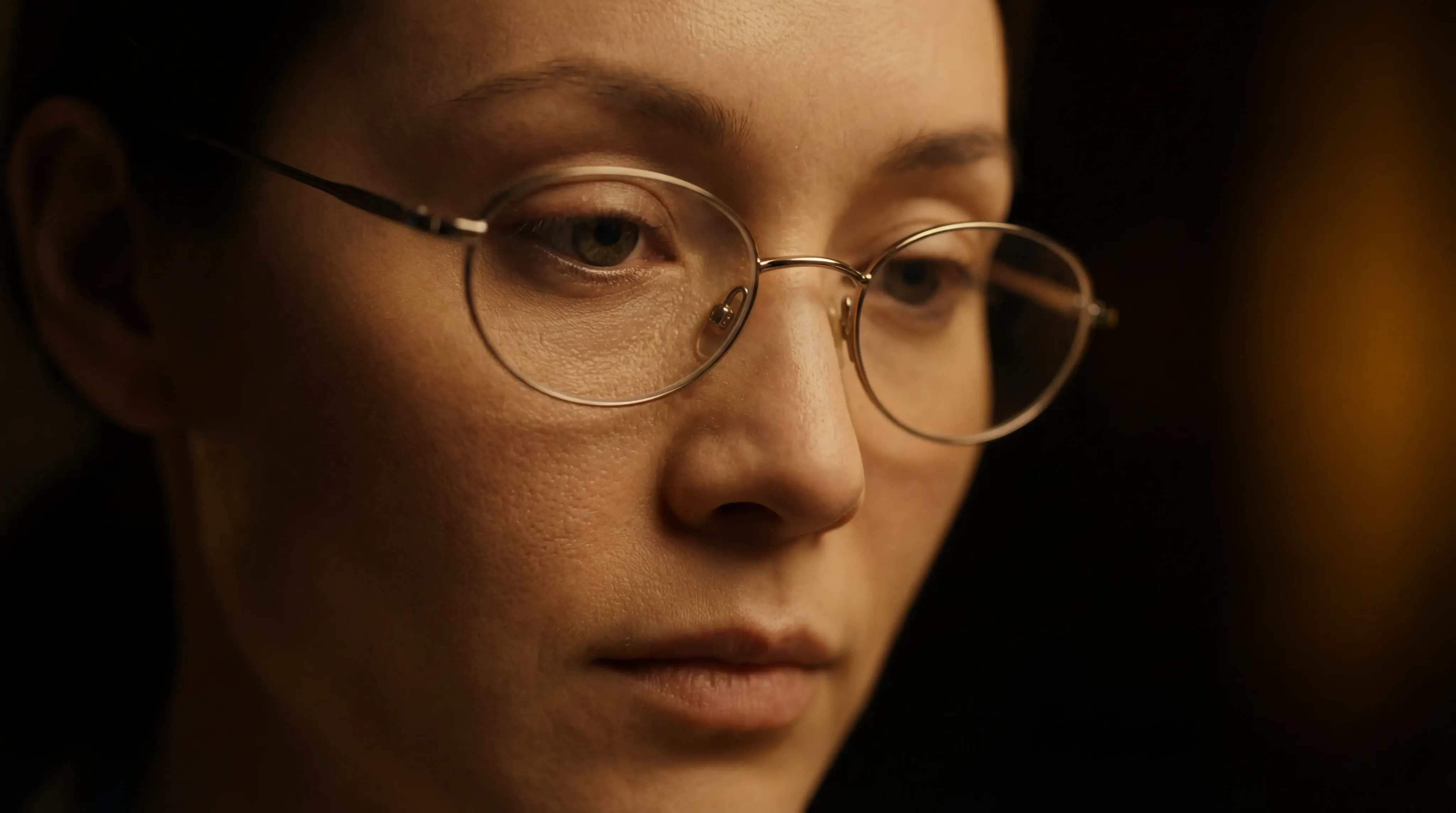
- RED V-RAPTOR: Very sharp and detailed, with few obvious issues.
- Sony Venice: Sharp and clean, but the RED look was preferred slightly more.
- IMAX: One of the favorites, extremely sharp with strong facial detail.
- ARRI Alexa: “Hollywood vibes,” realistic, sharp, detailed.
- ARRI Flex: A noticeably different look, darker tones with more of a film grain feel.
- Panavision Millennium DXL2: Rich detail and strong color, hard to go wrong.
Lens choices: spherical vs anamorphic (the big decision)
Cinema Studio includes 11+ lenses, but the most helpful way to think about lenses is to start with the main split:
Spherical lenses: Capture the image normally, with no special squeeze distortion.
Anamorphic lenses: Squeeze the image horizontally, then de-squeeze later, often creating a more “cinema” feel with characteristic flares and bokeh.
A simple mental model used in the walkthrough:
- Camera sets the base look
- Lens adds the flavor and artifacts
To show lens differences, the test kept the same image input, same prompt, same camera, then swapped lenses only. A few lenses were highlighted:
- Petzval (spherical): Adds a vignette-like feel and a swirl around the face, giving a more artistic motion blur effect.
- Canon K35: Produces a brighter look with a strong flare from light sources.
- JC XL Express (anamorphic): Adds flares that look natural, not like a pasted-on effect.
- Panavision C Series (anamorphic): A favorite for a wide cinematic feel, including classic blue streak flares.
If you want to see how Higgsfield talks about cinematic prompting and examples in general, their own Prompt Guide to Cinematic AI Videos is a solid companion resource.
Focal length: small number changes, big visual impact
Focal length is where shots can flip from “action POV” to “portrait film still” fast. The walkthrough showed a boxer-style image using the same prompt each time, changing only focal length.
Here’s the practical difference that came through:
| Focal length | What it tends to look like in Cinema Studio | Best used for |
|---|---|---|
| 8 mm | Super wide, edge distortion, intense POV feel | Extreme action, cramped spaces, stylized close-ups |
| 14 mm | Still wide, pulls the camera back a bit | Wider scenes where you want more environment |
| 24 mm | Common “safe bet,” adds some background blur | General scenes, everyday cinematic framing |
| 50 mm | Stronger bokeh, more separation from background | Portraits and versatile hero shots |
One useful caution from the walkthrough: the 24 mm background blur can sometimes feel a bit fake in AI if the separation doesn’t match the scene perfectly.
Cheat sheet support (cameras, lenses, focal length)
Because these settings stack together, a “quick pick” reference can save time when you’re moving fast. A free community was offered with a cheat sheet that maps cameras, lenses, and focal lengths.
If you want that reference, join the NextGen AI community on Skool.
Creating cinematic AI videos in Cinema Studio
Video mode keeps the same overall approach as images, but adds the feature that matters most for filmmaking: movement.
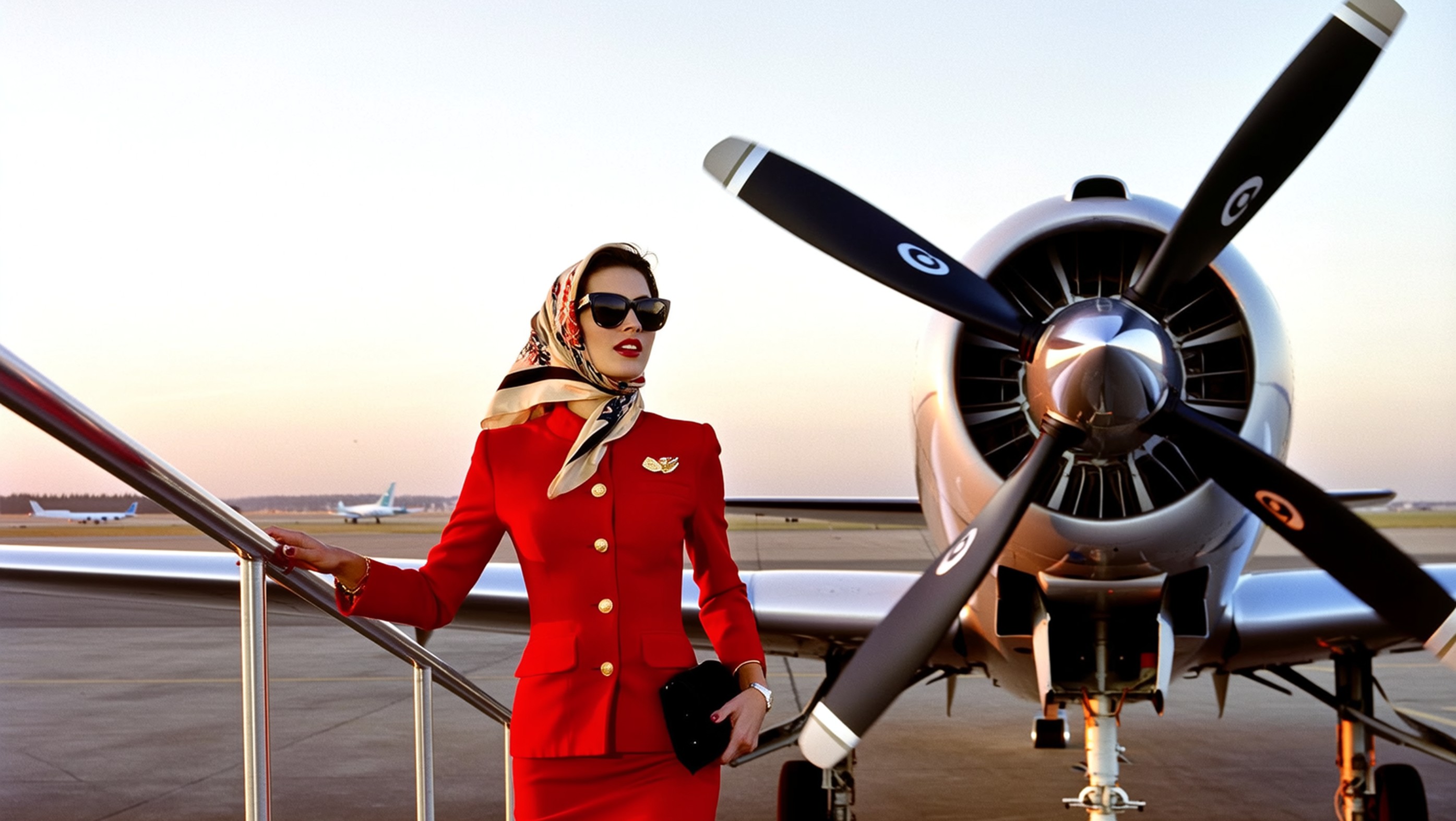
Cinema Studio gives you movement presets so you don’t have to describe camera motion perfectly in text every time.
For a product overview straight from Higgsfield, the Cinema Studio by Higgsfield page explains the “cinema studio” positioning and what they’re aiming for.
Video settings you’ll use most
In video mode, you can control:
- Movement presets (static, handheld, zoom in, zoom out, orbit, dolly out, and more)
- Duration (5 seconds or 10 seconds)
- Audio (on or off)
- Slow motion (on or off)
- Batch size
There’s also an important option:
Start frame + end frame: You can set a starting image and an ending image to guide the motion between them. When you use this, you lose the ability to enable audio, and you also lose manual movement selection (because the transition itself drives the motion).
Start frame + end frame example (guided transitions)
A clear example used:
- Start frame: an image of the creator
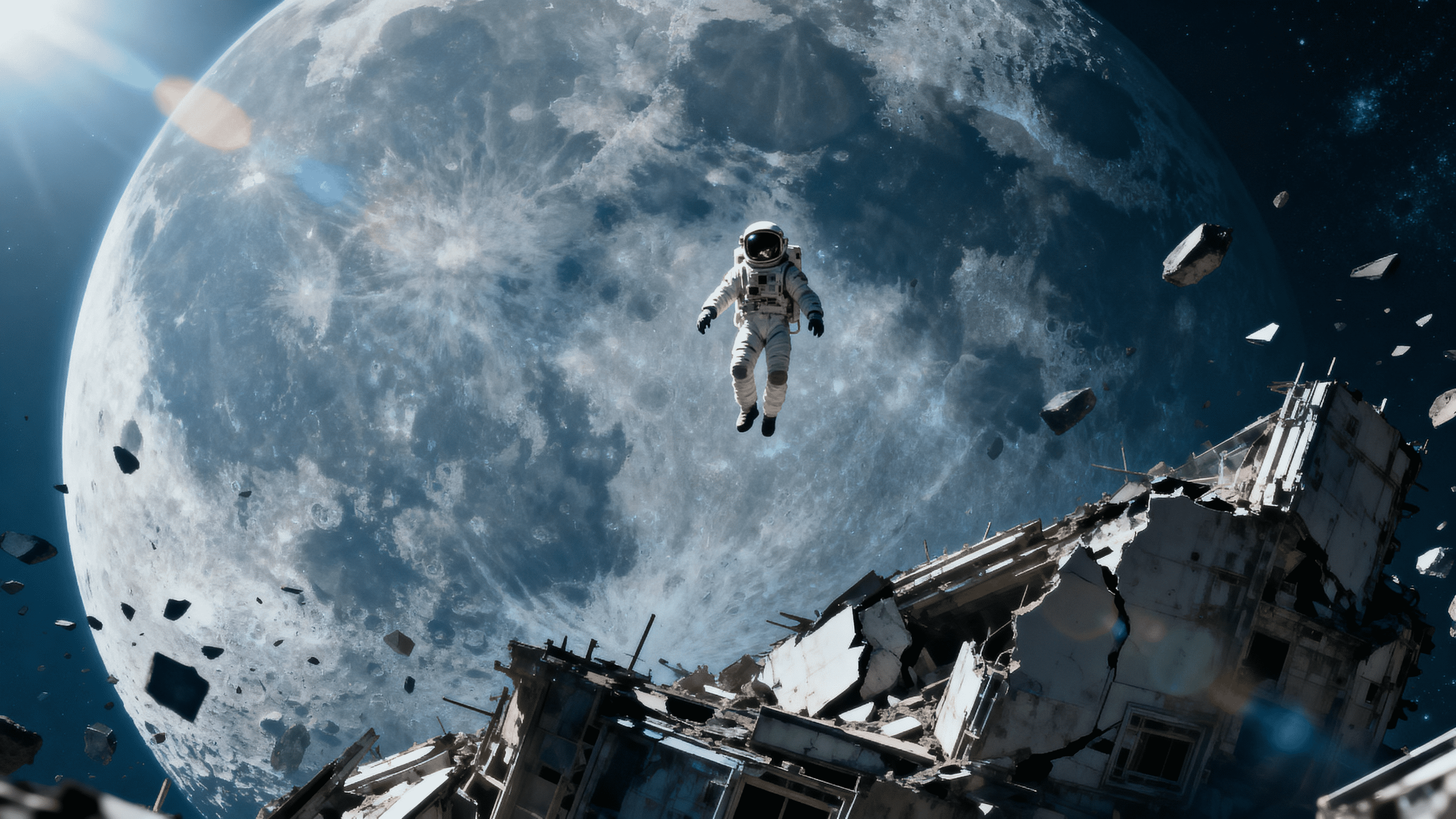
- End frame: an image of everything crumbling down
Prompt concept: the subject is stunned, and the camera whips right as a building collapses.
Because it’s start-to-end guided, Cinema Studio creates motion to connect those two frames. The output was described as being in the same “feel” as other start/end style video systems.
Movement presets: examples that show what each one does
Movement presets shine when you already have a strong image and just want “the shot.”
A few examples demonstrated:
- Zoom in
Scene: fighting sequence, the subject kicks the enemy out of frame, the enemy looks into camera in shock, then the camera smoothly zooms into a tight close-up.
Why it works: the zoom preset handles the move cleanly, without you having to over-explain it. - Handheld
Scene: a mountain climber climbing, using the handheld preset.
Why it works: the natural wobble sells the “someone is filming this” feel. - Zoom out
Why it works: it reveals more of the scene and changes the energy fast. - Orbit
Why it works: it adds instant production value by moving around the subject. - Dolly out (different from zoom out)
Dolly out physically moves the camera backward to widen the shot. Zoom out changes the lens zoom.
Why it works: dolly movement tends to feel more like a real camera move, because perspective changes as you pull back.
Where Cinema Studio fits in a practical AI workflow
Cinema Studio is most useful when you want repeatable visual decisions:
- You want a consistent “camera package” feel across a set of images.
- You want the same scene framed in a few ways without rewriting prompts from scratch.
- You want motion that looks intentional, without writing camera-direction paragraphs.
It’s also a reminder that some of the best ai tools aren’t the ones with the longest feature list. They’re the ones that reduce guesswork.
If you want more supporting walkthroughs from Higgsfield themselves, their Higgsfield How To Guides hub is a good place to browse.
What I learned after using these controls (my personal experience)
The fastest improvement came from treating Cinema Studio like a real shoot. I stopped thinking “prompt first,” and started thinking “shot first.” That mindset change made my results more consistent.
Three things stood out:
Camera choice affects realism more than expected. When I kept the lens and focal length fixed, swapping cameras still changed the feel of the image. Some looked cleaner and sharper, others leaned darker or more film-like.
Anamorphic lenses add style fast, but they also add risk. Flares and streaks can look amazing when they fit the scene. If the light sources don’t support it, the effect can steal attention.
Movement presets save time and reduce prompt bloat. For video, I got better motion by choosing “handheld” or “orbit” than by trying to describe the move perfectly. The preset gave me the camera behavior, then the prompt handled story beats.
That combination, clear shot decisions plus short prompts, is what made Cinema Studio feel different from other ai tools I’ve tried.
Conclusion
Cinema Studio is built around a simple promise: control. Pick the camera, pick the lens, set the focal length, then choose movement like zoom, handheld, orbit, or dolly. That structure makes it easier to get results that look planned, not accidental.
If you want to start experimenting, try Higgsfield Cinema Studio and keep a small test routine, same image, same prompt, one setting change at a time. If you want a shortcut reference for the settings, the NextGen AI community is where the cheat sheet was shared.


0 Comments