
Have you ever stared at an old photo and thought, “If this could talk, it’d break the internet”? That’s basically what “animate your photos” means today: turning a single image into a short video with motion, facial expressions, and sometimes full lip sync.
The fun part is how accessible it’s gotten. Many ai tools now run in your browser, and you don’t need timeline editing or fancy software. The trade-off is that “free” often comes with limits like watermarks, short clip lengths, lower resolution exports, or daily credit caps. This guide helps you pick the right free (or free-to-start) tool for your goal, and avoid surprises.
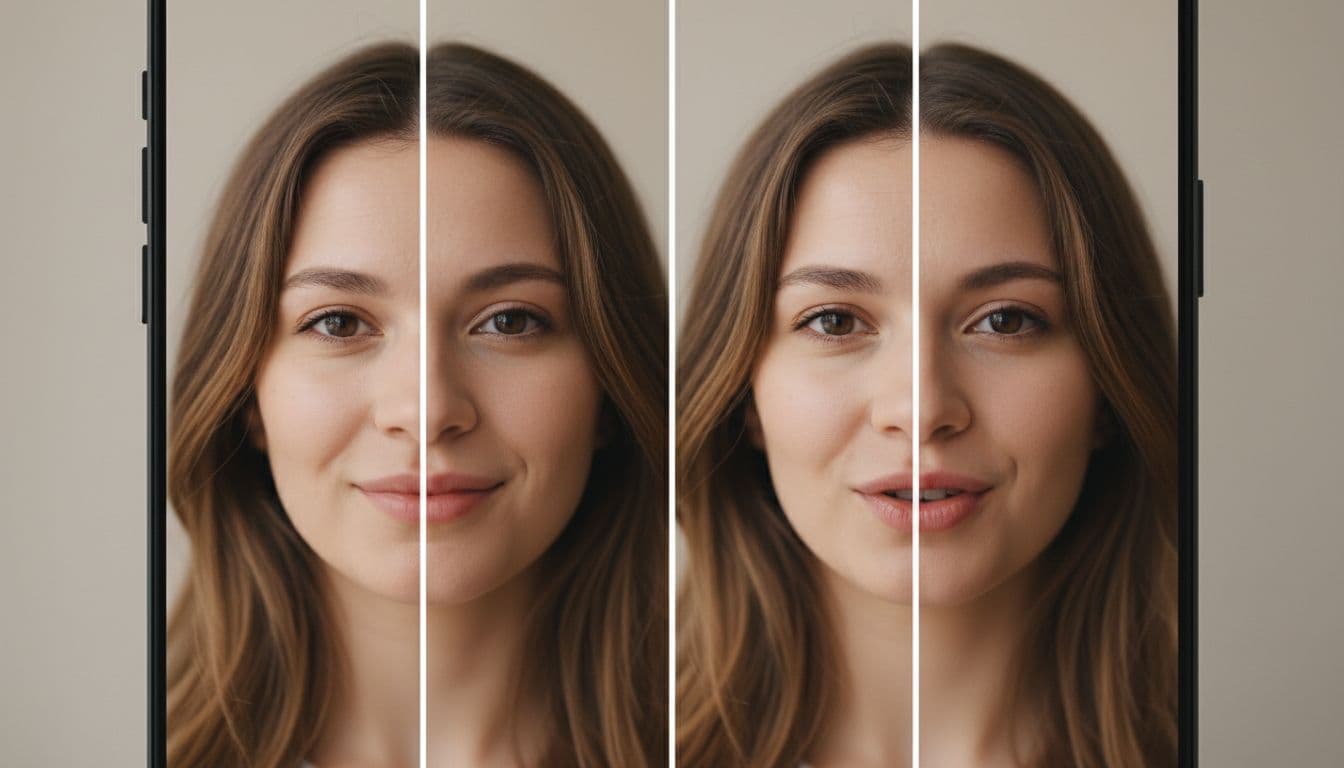 An example of a still portrait turned into a talking clip, created with AI.
What “photo animation” can do for content creators (and when it’s worth using)
Photo animation is best when you want high attention in the first second. A still image can become a talking head, a reacting meme, or a subtle product shot with motion. That small shift often boosts watch time, especially on TikTok, Reels, and Shorts, where people scroll fast.
Common, practical use cases include:
- Talking portraits: a face speaks a script (great for hooks, intros, explainer clips).
- Gentle motion for product photos: pan, zoom, or slight movement to make posts feel alive.
- Memes and reaction videos: cartoon characters, pets, or stylized avatars “respond” to trends.
- Repurposing: one photo becomes 3 to 5 variants for different platforms.
A quick “best fit” map helps:
Talking avatar tools: best when you already have voice audio and need mouth movement.
Motion effect tools: best for subtle movement (zoom, sway, parallax) without speech.
Old-photo realism tools: best for family history and vintage portraits, usually not full speech.
Free plans usually cap one or more of these: video length, export quality, daily credits, watermarks, or queue priority.
One safety rule matters more than any setting: use photos you own or have permission to use. And if you’re publishing, label AI content when a platform or audience expectation calls for it.
Popular formats you can make from one photo (Shorts, memes, pet reactions, podcast-style clips)
If you want ideas you can picture instantly, here are formats that work right now:
Cartoon character delivering a joke: You upload one cartoon image, add a short voice line, and the character “performs” it. This plays well on Shorts and TikTok because it feels like a fast sketch.
Pet reaction clip with accurate lip sync: A photo of a dog or cat “reacts” to a story. Even when it’s obviously silly, tight mouth timing makes it more watchable, and it works well as a reply video on TikTok.
News-anchor style commentary: A clean portrait becomes a talking host for quick updates or opinions. The visual feels like a show, even if it’s built from one image.
Podcast teaser from a single headshot: You animate the guest photo to deliver a 10-second hook, then add captions. It’s a strong promo for Reels and Shorts because it looks like a real clip, even when it’s not.
The key is to keep it short. Most free tiers love 5 to 15 seconds.
Quick checklist before you animate a photo (quality, audio, lighting, and consent)
Use this before you hit “generate”:
- Clear, front-facing face (eyes visible, not blocked by hair or hands)
- Good lighting (avoid harsh shadows across the mouth)
- Minimal blur (sharp lips usually produce sharper mouth shapes)
- High-detail image (bigger, clearer photos tend to animate better)
- Clean audio (less echo, less background noise)
- Consent and context (don’t animate someone’s face for misleading content)
- Avoid celebrity impersonation if it could confuse people or break platform rules
Best free AI tools to animate photos (talking, motion effects, and old-photo style)
 Photo by Sanket Mishra
Before the tool-by-tool notes, here’s a simple comparison you can scan. Free limits change, so treat this as a starting point and always check export settings before you build a campaign around one platform.
| Tool | Best for | How it works (plain English) | Free plan reality (Dec 2025) |
|---|---|---|---|
| SadTalker | Talking head + lip sync | Photo + audio generates speaking face | Free/open-source, setup required |
| Avatarify | Live face animation | Photo/webcam drives face motion in real time | Free/open-source, more setup |
| EaseMate AI Picture Animator | Quick motion presets | Upload photo, choose motion, export | Free option, may be low-res |
| Adobe Express | Simple social animations | Add basic motion to images for posts | Free plan for basics |
| Monica AI | Fast picture-to-video | Upload photo, spend credits per render | Free credits to start |
| MyHeritage Deep Nostalgia | Old photo movement | Preset face motions for portraits | A few free tries, then limits |
| Pika | Image-to-video motion | Photo + prompt generates short video | Reported free access late 2025 |
| Genmo | More controlled motion | Photo + prompt, targeted animation | Free credits to start |
| MugLife | Meme-style face moves | Photo + presets or audio creates 3D-ish motion | Free tier, playful results |
| TokkingHeads | Talking faces | Photo + audio/video drives expression | Free but often watermarked/limited |
Fully free options (open-source or free plans)
SadTalker (open-source talking head)
Best for: speech from a single portrait with strong lip sync.
How it works: you provide one photo and an audio file, it generates face motion around the voice.
Free limits: open-source, so usage isn’t capped, but your patience might be (installation and setup take time).
Try this first: use a centered face and clean audio. The official site is https://sadtalker.ai/, and a quick walkthrough like this overview helps when you’re getting started: https://www.toolify.ai/ai-news/create-animated-talking-avatars-with-sadtalker-1199849.
Avatarify (open-source real-time animation)
Best for: live effects, streaming-style talking heads, and real-time face puppeting.
How it works: a photo (or webcam feed) is animated in real time using a driver video or motion input.
Free limits: open-source and free, but it’s not the easiest option for beginners.
Try this first: treat it like a “project,” not a quick web app. It rewards tinkering.
EaseMate AI Picture Animator (easy motion presets)
Best for: quick movement when you don’t need speech.
How it works: you upload a photo and pick a motion effect (small head turns, gentle sway, simple movement).
Free limits: free option exists, but downloads can be lower resolution depending on the mode.
Try this first: use product photos with clean backgrounds, subtle motion hides artifacts.
Adobe Express (simple animations for social)
Best for: creators who want basic motion plus a fast path to posts.
How it works: you apply simple animation styles (like pan and zoom) and export for social.
Free limits: the free plan covers basic features well for lightweight animations.
Try this first: make a “talking” post feel alive with motion and captions, even if the face doesn’t speak.
If you also generate the base image with AI before animating it, image quality matters. This guide can help you get cleaner starting images: Explore Google Nano Banana Pro’s hidden features.
Free with limits (credits, trials, or watermarks)
Monica AI (quick picture-to-video with credits)
Best for: fast results in a browser.
How it works: upload an image, pick an effect, render a short clip.
Free limits: free credits to start, with a credit cost per generation (often around 2 credits per use).
Try this first: animate a portrait with a subtle prompt like “small head movement, natural blink.”
MyHeritage Deep Nostalgia (old photo realism)
Best for: making family portraits feel alive.
How it works: preset animations add nods, blinks, and small facial movements.
Free limits: usually only a few free tries before limits.
Try this first: scan an old photo cleanly and crop to a single face. Background clutter lowers realism. For background and limits context, see https://www.logicweb.com/myheritage-deep-nostalgia/.
Pika (prompted image-to-video)
Best for: turning one photo into a short “scene” with motion.
How it works: upload an image and describe the action you want, it generates a short clip.
Free limits: reported as free access in late 2025, but plans and policies can change, so check pricing and export details: https://pika.art/pricing.
Try this first: keep the motion simple (“gentle camera push-in,” “small wave”), complex actions can warp faces.
Genmo (more control over motion)
Best for: creators who want specific actions, not random movement.
How it works: you describe motion in text, and it animates parts of the image.
Free limits: free credits to start, then paid plans if you generate a lot.
Try this first: ask for one action only (like “smile and blink”), then iterate.
MugLife (meme-friendly face animation)
Best for: funny clips, exaggerated expressions, quick reaction memes.
How it works: upload a face and apply preset 3D-like motions or simple voice-driven movement.
Free limits: free tier exists, exports and features vary by platform.
Try this first: use a high-contrast face photo, it reads better when expressions get dramatic.
TokkingHeads (freemium talking faces)
Best for: simple talking head experiments.
How it works: animate a face using audio or a driver video for expressions.
Free limits: typically watermarks and other caps on the free tier.
Try this first: if it looks “floaty,” swap to a better source photo or drive it with video instead of audio.
Quick warning: free tiers change. Before you plan a series, test export quality (resolution and watermark rules) on the exact platform you’ll publish to.
My experience and what I learned after testing free photo animation tools
 Testing a browser-based workflow for turning one photo into a talking clip, created with AI.
After trying a mix of open-source tools and browser apps, one lesson kept repeating: newer “talking photo” models usually look better. The mouth shapes are sharper, expressions look less stiff, and the head motion feels more human.
I also learned how far browser tools have come. On a modern lip sync platform I tested, I could upload media, pick a model, and generate a clean talking clip without touching an editing timeline. It offered free daily credits, and even let you earn extra credits through simple social actions. The tool set was split into two buckets: lip sync for creators, and dubbing or translation for multi-language videos.
The biggest surprise was that a single photo sometimes produced more than just a moving mouth. In a few outputs, hands and subtle body motion appeared too, which made the clip feel more like “video” than a flat puppet.
Results still vary. Real faces can look uncanny if the photo is low-res. Cartoons and pets often look great because your brain expects exaggeration.
What gave me the most realistic lip sync (and what made it look fake)
Realistic lip sync usually came down to three things:
Clean audio: clear voice, low noise, steady volume.
Neutral, front-facing photos: less angle, fewer weird shadows around the lips.
Short scripts: the longer the clip, the more time for drift and artifacts.
What made it look fake fast: extreme head angles, heavy blur, and audio with echo or music bleeding into speech.
Fix it fast:
- Re-record audio closer to the mic
- Use a sharper photo, especially around the mouth
- Try a different model if the tool offers it
- Shorten the script to one punchy idea
My easiest workflow for social clips (from one photo to a finished Short)

A simple photo-to-Short workflow using one image, voice audio, and an online generator, created with AI.
- Pick a photo with a clear face (1 minute)
- Write a 2 to 4 sentence script (3 minutes)
- Record audio on your phone in a quiet room (2 minutes)
- Upload photo and audio to a talking tool (2 minutes)
- Choose the best quality model available, then generate (2 to 5 minutes)
- Download and add captions in a simple editor (5 minutes)
For most beginners, that’s 10 to 20 minutes end-to-end.
How to choose the right free AI tool for your goal (without wasting time)
Picking the right tool isn’t about brand names, it’s about matching your goal to the tool type, and matching your patience to the free limits.
Use this mini rubric:
Quality (mouth shapes, eye blinks, stability)
Speed (seconds vs queue time)
Ease (browser vs install)
Device needs (strong computer for open-source, or any laptop for web)
Export limits (watermarks, resolution caps, length caps)
Commercial use terms (read them if you’re using it for a business)
Decision guide: talking avatar vs motion effects vs prompt-based animation
- If you have voice audio, pick a talking tool (SadTalker, TokkingHeads).
- If you want simple movement for a product shot, pick a preset motion tool (Adobe Express, EaseMate).
- If you want creative motion and camera moves, pick prompt-based tools (Pika, Genmo).
- If you’re restoring family photos, pick old-photo realism (MyHeritage Deep Nostalgia).
Free tiers often limit length, so short-form content is the safest plan.
Common mistakes beginners make (and simple fixes)
Using low-res images: Upscale or choose a sharper photo first.
Picking the wrong tool type: Don’t use an old-photo animator when you need speech.
Writing long scripts: Keep it under 15 seconds, then make a Part 2.
Expecting perfection on the first try: Plan two test runs with different photos.
Ignoring watermarks: Export a test clip before you commit to a format.
Skipping consent: If it’s not your photo, get permission. Don’t post misleading impersonations.
Short clips hide flaws. Long clips expose them.
Conclusion
Animating photos is one of the fastest ways to turn a plain image into content people actually watch. Free ai tools can get you there in minutes, but your best choice depends on your goal, and how much you can tolerate limits like credits, watermarks, and lower resolution.
Test 2 to 3 tools using the same photo and the same audio, then keep the one that fits your style. Pick one tool from the list, make a 10-second clip today, and repost it across Shorts, Reels, and TikTok.


0 Comments