

Subscriptions add up fast. One for writing, another for design, another for video editing, another for “research”, and suddenly you’re paying a monthly bill just to do normal work.
The good news is that AI tools have gotten so capable that many “paid-only” tasks now have free options that are genuinely useful. The catch is simple: “free” usually means caps, watermarks, slower queues, or fewer exports. Still, a lot of people can get real work done without paying a cent.
This guide shares 11 free tools worth trying now, what each one can replace, a quick first task to run, and the limit you’re most likely to hit.
Before you cancel subscriptions, know these 5 “free tier” rules
Free tiers aren’t charity, they’re a trial that’s meant to convert you later. If you understand the rules upfront, you won’t get blindsided mid-project.
1) Daily credits and “soft” throttles
Some tools give you a small number of daily generations, then quietly reduce quality or switch you to a smaller model when traffic is high.
2) Monthly caps (especially for text and audio)
Text-to-speech and transcription often come with a strict monthly character or word allowance. Plan around your weekly workload.
3) Watermarks and export limits
Video and image tools may export with a watermark, limit resolution, or block certain file types unless you upgrade.
4) Commercial use rules vary
“Free” doesn’t always mean “free to monetize.” Always read the terms if you’re using outputs for client work, ads, or product packaging.
5) Privacy and uploads matter
If you upload contracts, medical docs, or client recordings, treat it like handing that data to a vendor. For sensitive work, choose tools with clear policies and avoid uploading anything you can’t risk exposing.
Quick checklist: will a free tool really replace your paid app?
- You can finish your most common task within the free cap
- Exports are usable (no deal-breaker watermark or low resolution)
- Terms allow your intended use (personal vs commercial)
- The tool is reliable enough for deadlines
- You’re okay using a “stack” (2 to 3 tools) instead of one do-it-all app
The fastest way to test if a free AI tool can replace your paid app
Pick one real task you do every week, not a demo task. Run it in the free tool, time it, and compare output quality to your paid app.
A simple test plan:
- Do the task once, normally (baseline time and quality)
- Do the same task with the free tool
- Note what limit you hit (credits, exports, resolution, queue time)
- Decide if it replaces your paid tool fully, or just covers 80%
Most people win by keeping a small “bench” of tools. One for research, one for writing, one for visuals.
 Canceling subscriptions and keeping more of your budget, created with AI.
11 free AI tools that can replace your paid apps (with real limits and best uses)
If you want a bigger menu of options beyond this list, browse a general roundup like this 2025 guide to free AI apps. For this article, the focus is on tools that can realistically cover common paid workflows.
Writing, research, and study tools
Gemini 3 (Gemini app and Google AI Studio)
Gemini is a strong all-around assistant for writing, reasoning, research help, and coding. Replaces: a paid chatbot plan for everyday work. Try this first: “Draft a client email, then rewrite it in a friendlier tone, then shorten to 120 words.” Limit to expect: free usage can throttle, and higher-end Gemini access can switch to lighter models after a small number of heavy prompts (see updates like Gemini 3 Pro free limit changes and Google’s own explanation of Gemini free prompt allowances).
Perplexity
Perplexity is built for “search plus an answer,” often with citations that make it easier to verify claims. Replaces: some paid research time, and in some cases a paid “AI search” subscription. Try this first: “Compare the pros and cons of LLC vs S-Corp for a solo creator, include sources.” Drawback: results depend on what’s indexed and how you phrase the question, always open the sources and verify.
Claude
Claude tends to be strong for longer writing, structured outlines, and careful summaries. Replaces: paid writing assistants for drafting and revision. Try this first: “Turn these bullet notes into a 700-word blog post with a clear intro, 4 subheads, and a short conclusion.” Limit to expect: message caps and availability can change, and Anthropic doesn’t publish one universal “free tier limit” that applies to every user and region.
NotebookLM
NotebookLM shines when you want answers from your own documents, not the open web. Upload PDFs, manuals, or class readings, then ask questions and get responses grounded in what you provided. Replaces: paid study tools, tutoring-style Q&A, and a lot of manual PDF searching. Try this first: upload a long PDF and ask, “Summarize chapter 3 and list terms I should memorize.” Drawback: it’s only as good as the sources you upload, and quotas can depend on your Google account limits.
 Research and study work gets easier when your tools can summarize and cite, created with AI.
Design, images, and video creation tools
Nano Banana Pro (image generation and editing)
Nano Banana Pro is one of the most impressive “create and edit images” models right now. Replaces: basic Photoshop tasks, quick ad creatives, and simple photo edits. Try this first: generate an image, then ask for an edit like “change the background to a cozy cafe, keep the subject identical.” Limit to expect: small daily quotas for high-quality generations (reports in late 2025 commonly mention around 2 per day on the Pro tier). Access can throttle during demand spikes, as covered in updates like Google throttling Nano Banana Pro free access.
Canva Magic Studio
Canva’s AI features help non-designers get clean results fast, especially for social posts, flyers, and simple brand assets. Replaces: hiring a designer for basic assets or paying for template libraries. Try this first: “Create an Instagram post for a midnight ramen popup with neon vibe.” Drawback: highly custom brand work still takes manual tweaking, and some Magic Studio features are limited on free plans.
SAM 3 (Segment Anything 3) for object tracking and effects
SAM 3 can detect and track objects in video, which is perfect for effects that usually require tedious masking. Replaces: some After Effects style object tracking for short content. Try this first: upload a clip and track “phone” or “face,” then apply a highlight or blur effect to everything else. Drawback: it’s not always perfect on fast motion or messy backgrounds, and you may still need a second pass in an editor.
Kling AI (text-to-video and image-to-video)
Kling can generate short video clips from text prompts or still images. Replaces: some stock footage needs, quick b-roll, and early storyboard drafts. Try this first: “Low-angle shot of a vintage car driving on a wet street at night, neon reflections, slow motion.” Limit to expect: short clip length and daily credits are common in free tiers, and quality depends heavily on prompt detail. For broader context on the category, see CNET’s roundup of AI video generators in 2025.
 Design and video workflows often start at a desk like this, created with AI.
Audio, music, and productivity tools
ElevenLabs (text-to-speech)
ElevenLabs is a go-to for natural-sounding narration that doesn’t feel robotic. Replaces: paid voiceover for small projects, and some expensive TTS tools. Try this first: paste a 30-second script and test 2 voices, then adjust pacing and tone. Limit to expect: the free tier is commonly around 10,000 characters per month, which covers short narrations. Drawback: longer videos will hit the cap fast.
Suno (AI music generation)
Suno can generate full songs from a plain description, and it’s surprisingly usable for demos and background tracks. Replaces: some royalty-free music subscriptions and “placeholder” compositions. Try this first: “Create upbeat lo-fi background music for a 60-second product demo.” Limit to expect: a daily credit system, often enough to produce multiple songs per day. Drawback: you’ll still want to check licensing and platform rules before monetizing.
Whisper Flow (speech-to-text dictation)
Whisper Flow style dictation is what basic voice typing should’ve been years ago: it captures what you say and cleans it up, including punctuation and formatting. Replaces: paid dictation apps and some transcription needs. Try this first: dictate a messy brainstorm and ask it to format into bullets and headings. Limit to expect: around 2,000 words per week on the free plan (based on commonly shared tool limits). Drawback: don’t dictate sensitive info, and accuracy drops with heavy background noise.
Quick best practices for AI audio and dictation
- Don’t clone voices without clear permission
- Label AI narration when a platform or client requires it
- Keep private details out of dictation tools and uploads
My personal experience: what worked, what failed, and what I learned after testing these AI tools
The biggest surprise was how far the free tiers go if you stay focused. When I used these tools for real tasks (not toy prompts), the time savings were obvious. A rough outline that used to take 45 minutes turned into 10 to 15. Simple design assets went from “I’ll do it later” to “done before lunch.”
The biggest frustration was consistency. Some days you’ll get a perfect output on the first try. Other days you’ll burn through your free credits fixing tiny issues. Watermarks and daily caps are the other hard stop, especially for images and video.
A workflow that kept working for me looked like this: research quickly in Perplexity, draft in Gemini, tighten structure in Claude, then move visuals into Canva or Nano Banana Pro. If the project needed narration, I’d use ElevenLabs, and for short video flair I’d try SAM 3 or generate a small clip with Kling.
One caution that doesn’t go away: accuracy. Treat AI summaries like a smart assistant who can still misread a source. For deeper reading on research-focused tools and workflows, this internal guide on Top AI research tools for 2026 is a solid next step.
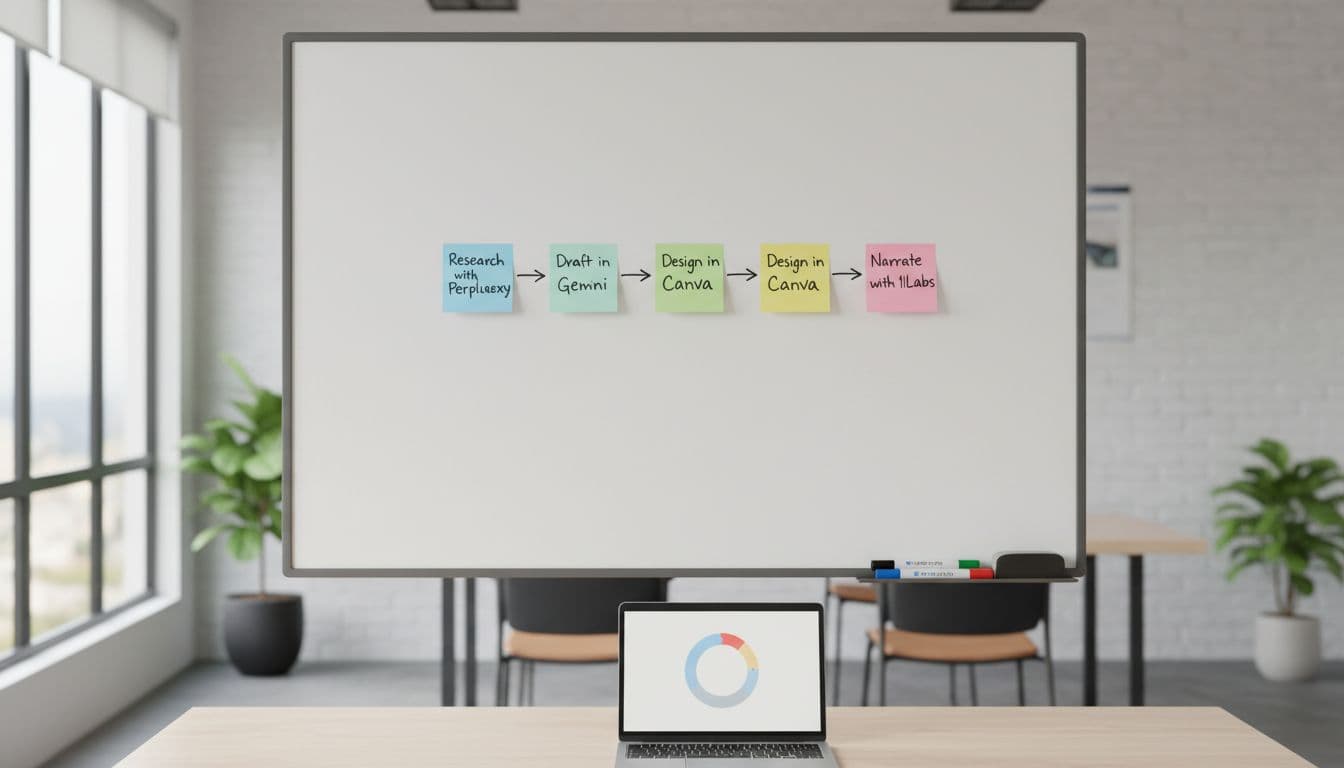 Planning a simple AI workflow makes the free tiers go further, created with AI.
Build your own free AI stack (pick the right tools for your exact goal)
You don’t need all 11. Pick a small stack that matches what you do most.
Student stack: NotebookLM, Perplexity, Whisper Flow
Good for reading-heavy classes, PDFs, and faster notes.
Creator stack: Nano Banana Pro, SAM 3, ElevenLabs
Great for thumbnails, short-form effects, and narration.
Small business stack: Gemini 3, Canva Magic Studio, Perplexity
Covers emails, proposals, quick visuals, and basic research.
Job seeker stack: Claude, Gemini 3, Canva Magic Studio
Use Claude for cover letters, Gemini for resume bullets and interview prep, Canva for clean resume layout.
Pay when you hit limits weekly, need team permissions, or you’re producing at volume. That’s when upgrades stop being “nice” and become time savings.
Conclusion
Most people can replace at least one paid app today with free AI tools, as long as they accept the caps and use a simple workflow. Start with one category (writing, design, video, or audio), test it for a week, then add the next tool if it sticks.
Bookmark this list and re-check free tiers often, they change fast (the recent shifts in Gemini limits are a good example, covered in pieces like this overview of free access changes).


0 Comments